Import Recipes from Instagram Reels: Step-by-Step Guide
Save recipes from Instagram Reels in 30 seconds — screenshot + caption paste + AI parse. The full step-by-step.
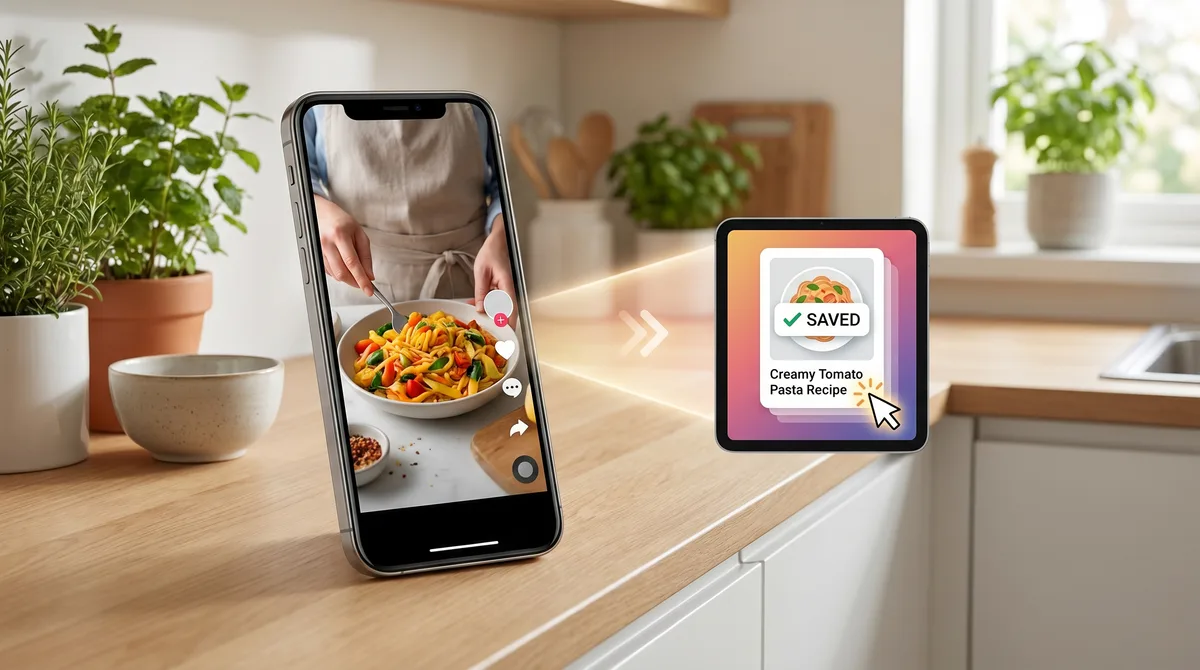
Instagram is now a real recipe-discovery platform. Reels in particular have become the format people share their cooking on, and your saved-Reels collection is probably full of recipes you mean to make. Forktastic doesn't watch the Reels videos directly, but the workflow below captures the recipe in roughly 30 seconds. This is the step-by-step.
The fundamental workflow
Instagram does not provide a public API that lets a recipe app pull the recipe out of a Reel. Recime built a workflow around video extraction that's genuinely impressive — that's their headline feature. Recime vs Forktastic is its own post.
Forktastic's approach is different: capture the on-screen text and caption, parse it with AI, save the result. The result is comparable quality, with a slightly more manual capture step. Here's how.
Step-by-step from a Reel
- Open the Reel in Instagram. Pause it on the frame that shows the ingredient list (most recipe Reels have a moment near the start or end where the ingredients are on screen).
- Take a screenshot — iPhone: side button + volume up. Android: power + volume down.
- Tap the caption below the Reel and copy the full text. Most creators put the full recipe in the caption.
- Open Forktastic → + → Import from Photo. Select the screenshot. Forktastic OCRs the image and pulls the ingredient list.
- Paste the caption into the same import flow — Forktastic merges the OCR'd ingredients with the caption's steps to build the complete structured recipe.
- Save.
Total time per recipe: about 30 seconds.
For creators who put the recipe in the description only (no on-screen text)
Skip the screenshot. Copy the caption, paste into Forktastic's paste-text import, AI parses it into a structured recipe. Paste-text walkthrough.
For creators who only put the recipe on-screen (no caption)
Take 2-3 screenshots covering ingredients and steps. Forktastic's batch photo import accepts multiple images at once. The OCR + AI parser stitches them into one recipe.
For the Reels with a separate "link in bio" recipe
Most "link in bio" links go to a personal recipe blog or a Linktree. Open the link in Safari and use the Safari extension or paste the URL into Forktastic for direct URL import. URL import walkthrough. This is usually the cleanest path because the creator wrote the recipe in proper structured form on their own site.
Tips for cleaner captures
- Crop the screenshot to just the ingredient list (use iOS markup or Android editor) before importing. The OCR is more accurate when there's less surrounding interface.
- For dark-mode Reels with white text, invert the image colors first — most OCR is tuned for dark text on light backgrounds.
- Verify quantities after import. Handwritten or stylized fonts in food Reels sometimes get misread (a "3" becomes an "8", etc.). Spot-check before cooking.
What about saving the Reel itself?
Instagram doesn't let you save a Reel to a third-party app via API. The Reel stays in Instagram; Forktastic stores the extracted recipe. The two are linked only by the source URL you can paste into the recipe's notes field if you want to be able to find the original video later.
Where to go next
For TikTok-specific workflows (very similar, slightly different in the caption-vs-on-screen ratio), TikTok walkthrough. For URL imports from food blogs, URL import guide. For the broader set of import methods, the import pillar.